Blog
Advanced GA4 Reporting Integration: Complete Setup Guide


Table of Contents
- Preparing for Successful GA4 Reporting Integration
- Before You Begin: Setting Up Your GA4 Environment
- Connecting GA4 to Looker Studio for Client Reporting
- Creating Custom Dimensions in Looker Studio for GA4
- Tracking Offline Conversions in Google Analytics 4
- Managing GA4 Token Usage Limits in Looker Studio Reports
Preparing for Successful GA4 Reporting Integration
Preparing for advanced GA4 reporting integration requires a methodical approach to data configuration and tool selection. We also document stakeholder responsibilities, access controls, and testing timelines to guide execution effectively. We start by confirming the GA4 property’s data retention is set to at least 14 months to avoid reporting gaps. Next, we define and test key conversion events — such as form submissions or phone calls — before mapping them to client KPIs. Part of advanced GA4 reporting integration involves ensuring event tracking is correctly configured to feed accurate data downstream. We then select a white label reporting dashboard that natively integrates with GA4 through Google OAuth 2.0. A clear data-mapping document aligning GA4 metrics with our reporting templates completes the setup. Once these preparations are in place, the actual integration becomes a straightforward process.
Before You Begin: Setting Up Your GA4 Environment
To achieve advanced GA4 reporting integration, it’s essential to begin with a properly configured environment. We start by creating a dedicated GA4 property and adding relevant data streams for your website and app. Next, we set up key conversion events to track the actions that matter most to your business. Linking your GA4 property to platforms like Google Ads and BigQuery unlocks deeper insights and is a critical step before moving to advanced reporting.
Proper user permissions are fundamental. We recommend establishing clear access levels within the GA4 admin panel to ensure secure and accurate data collection. This preparation ensures you can later leverage the full power of an advanced GA4 integration, and streamline cross-platform analysis and reporting capabilities.
For presenting this data, using a branded dashboard is a game-changer. According to SEO Local’s knowledge base, a white label client reporting dashboard allows agencies to present complex analytics under their own professional brand. This approach builds client trust, reinforces value, and streamlines workflows. It transforms raw data into a professional, branded report that reduces client churn and supports meaningful, ROI-focused conversations.
Connecting GA4 to Looker Studio for Client Reporting
For advanced GA4 reporting integration, Looker Studio offers the most flexible client dashboard options. Now that your GA4 property is capturing data, follow these steps to build an automated report that saves hours each month. In Looker Studio, click Create → Data Source → select the Google Analytics connector, then choose your GA4 property. Next, add essential dimensions such as Date, Source/Medium, Landing Page, and Device Category, paired with metrics like Sessions, Users, New Users, Goal Completions, and Ecommerce Revenue. Apply a date range control with a comparison period so clients can quickly spot month-over-month trends.
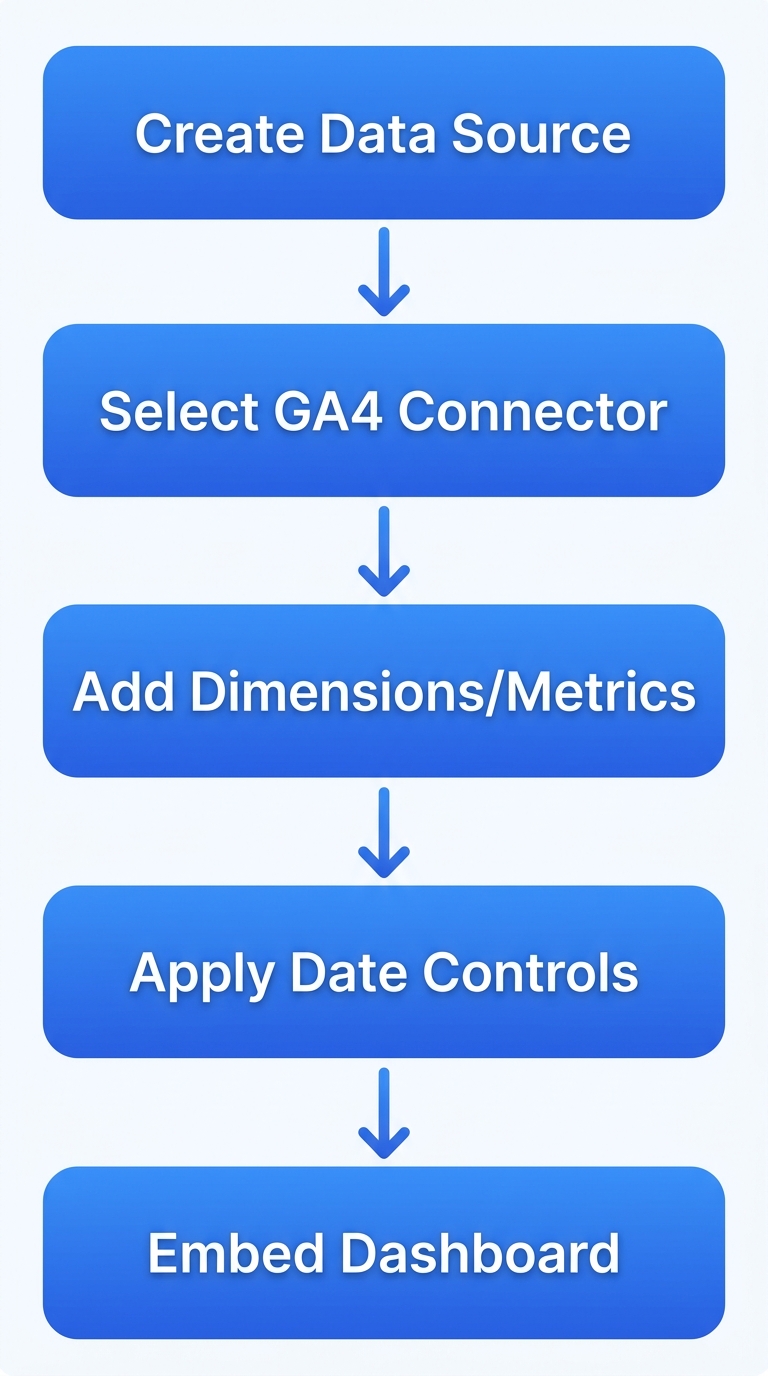
Five-step process to connect GA4 to Looker Studio for client reporting.
Integrating GA4 with Looker Studio at an advanced level lets you customize each report with your client’s brand colors and logo. Once connected, deliver the report using our white label SEO reporting dashboard to maintain client trust, reinforce your agency’s identity, and eliminate manual formatting.
Creating Custom Dimensions in Looker Studio for GA4
Custom dimensions are a powerful feature for advanced GA4 reporting integration, allowing you to tailor reports with event-level data. At SEOLocal, we use this to build precise local SEO dashboards for our clients.
To create one, you work with parameters already flowing from your GA4 property. First, verify the custom dimension is defined under ‘Custom Definitions’ in GA4 — only registered event parameters and user properties appear in Looker Studio. Next, in Looker Studio, edit your report and add the GA4 data source. Click ‘Add a dimension’ and select the relevant parameter, such as page_referrer or page_title. You can then rename the dimension, for example changing page_referrer to ‘Landing Page’, to make reports clearer for stakeholders. These dimensions can then be used for filtering by city or service area, giving you deeper integration with GA4 reporting for localized analysis.
Results depend on your GA4 configuration. Staying current with SEO news and industry resources helps you adapt as event parameters evolve.
Tracking Offline Conversions in Google Analytics 4
Beyond standard online events, offline conversions—like phone calls, form submissions, and booked appointments—give you a fuller view of campaign performance, and tracking them is essential for an advanced GA4 reporting integration. At SEOLocal, we use our GBP Booking Integration to link these offline customer actions, such as an appointment confirmed in Miami, directly into GA4.
To set this up, you first need a linked Google Business Profile with our booking integration active. Then, map your GBP booking events to custom GA4 conversion events, like gbp_booking_complete. Next, import your offline data via Admin > Conversions > Uploads, preparing a CSV with the required User ID or GCLID, conversion name, and a correctly time-stamped timestamp.
Always verify your attribution in the Conversions > Events report to ensure your integrating GA4 reporting for advanced offline tracking is accurate and free of duplicate conversions. These tracked offline conversions provide the crucial data layer your advanced GA4 setup requires for deeper analysis.
Managing GA4 Token Usage Limits in Looker Studio Reports
Achieving an advanced GA4 reporting integration in Looker Studio requires careful management of token usage limits to keep client dashboards reliable and uninterrupted. The GA4 API enforces a default daily quota—typically 60,000 tokens per property—with each request costing roughly 10 tokens, making it easy to exhaust limits when multiple reports refresh live data simultaneously.
We configure cached data views inside Looker Studio instead of relying on live queries for high-traffic dashboards, which can cut token consumption by 80–90%. Scheduling automated data refreshes during off-peak hours further keeps reports current while staying well within API thresholds. For clients who need granular dimensions, we often recommend aggregating data at the property level using pre-computed summary tables in BigQuery, reducing token-intensive requests.
According to seolocal.it.com, branded white-label dashboards are essential for building long-term client trust and reducing churn—goals that depend on uninterrupted, accurate reporting. Our AI-driven local SEO platform’s white-label dashboard can be configured with token-saving defaults, helping agencies deliver Fast SEO Results! without hitting quota limits. Once token limits are under control, you can explore automated refresh schedules for real-time data and deeper performance insights.
Building an Omnichannel Marketing Dashboard with GA4
An advanced GA4 reporting integration is the natural next step after mastering basic analytics. By combining GA4 reports across channels, you can unify data from organic search, paid campaigns, social media, and email into a single, actionable view. This cross-channel GA4 analytics approach enables faster, more transparent reporting for local SEO clients.
Follow these steps to build your dashboard:
- Connect your data sources — use GA4’s native integrations for Google Ads and manual UTM tagging for email and social platforms.
- Create a custom exploration — choose the “Free form” technique and add dimensions like Source / Medium, Campaign, and Default Channel Grouping. Then, with GA4’s advanced reporting integration, add key metrics: Sessions, Conversions, and Revenue.
- Leverage the Segment Overlap report to visualize how different channels interact throughout the customer journey.
- Save your report as a reusable template under Customization > Dashboards for quick access.
For agencies seeking a turnkey alternative, our white-label dashboard serves as a complete, branded reporting solution. Visit the knowledge base for a deeper comparison of performance tracking features, including those highlighted by SEO Local (seolocal.it.com).
Integrating AI-Driven Insights from GA4 for Local SEO Dashboards
Our advanced GA4 reporting integration unlocks AI-powered insights that help local SEO clients detect performance trends before they become problems. White-label dashboards let agencies rebrand these AI-driven GA4 insights under their own logo, building client trust and retention. Our internal guidance confirms that branded reporting reduces churn by consistently demonstrating value.
To get started, connect your GA4 property to the dashboard platform, then select AI-generated audience segments such as “high-intent local users” to automatically populate branded report templates. Our advanced GA4 reporting integration then surfaces anomaly alerts and predictive trends, presenting automated GA4 reporting for local SEO in real time. Agencies can further customize widgets to highlight store visits, conversion actions, and audience growth, delivering actionable local performance data without manual analysis.
This AI-driven local SEO integration supports Fast SEO Results! by transforming GA4 data into actionable strategies, all within a dashboard that looks like your agency built it. Try our 30-day trial to see the integration in action.
Automating GA4 Reporting with White Label Dashboards
Beyond general white label reporting, advanced GA4 reporting integration with white label dashboards—a method we highlight in our knowledge base—automatically pulls essential metrics such as user engagement, conversion rates, and traffic sources into a single branded interface. This eliminates hours of manual report compilation, removes the risk of copy-paste errors, and ensures every client receives a consistent, professional report without the repetitive work.
We offer white label analytics dashboards as part of our reporting services, automating GA4 data for multi-location campaigns. By integrating advanced GA4 reporting in our dashboards, agencies can monitor user engagement, conversion trends, and traffic sources across dozens of client properties from one dashboard. Real-time updates keep the data fresh, and a single branded link simplifies sharing with clients—no manual refreshing required. This reporting efficiency frees your team to focus on strategy, not spreadsheets. Next, we’ll cover how to set up these automated reports in just a few steps.
Troubleshooting Common GA4 Integration Issues
Even with a proper setup, integration issues can hinder your ability to achieve an advanced GA4 reporting integration. When data isn’t flowing correctly, we find that the root cause usually falls into a handful of predictable patterns. Here are the most common pitfalls and how we resolve them, based on best practices and industry observations.
1. Data Discrepancy Between GA4 and Universal Analytics
A frequent frustration is seeing different session counts. This often occurs because the two platforms use fundamentally different measurement models—GA4 tracks events, while Universal Analytics uses sessions as a primary metric. According to Search Engine Land, many apparent discrepancies are rooted in improper configuration rather than actual data loss. To troubleshoot, first verify your GA4 time zone matches UA. Next, ensure your website is not sending pageviews to both properties, which can artificially inflate metrics. A misstep here can distort your advanced GA4 reporting integration, making reliable analysis difficult.
2. Tag Not Firing Due to Incorrect Container Setup
The most common setup error we see is a duplicated or missing gtag.js snippet. This typically happens when a user hardcodes the tag in a theme file but also adds it via Google Tag Manager. A practical first step is to open the GA4 real-time report and visit your site in an incognito window. If no activity appears, use Google Tag Assistant to check for correct tag firing. For our WordPress plugin users, always enter the Measurement ID in the plugin’s settings field; doing this avoids the conflict of a duplicate code placement.
3. Missing Enhanced Measurement Events
GA4’s Enhanced Measurement automatically tracks actions like scrolls, outbound clicks, and file downloads. When these events disappear, we often find that the feature was inadvertently toggled off after a property update. Navigate to the data stream settings in your GA4 admin and confirm that the “Enhanced measurement” switch is on. If a specific event, like a click, isn’t recording, check your tag container’s triggers to ensure you aren’t inadvertently blocking the default action.
4. Cross-Domain Tracking Not Working
A broken cross-domain setup typically siloes traffic across different domains, creating an incomplete user journey. This issue usually traces back to an incorrectly configured data stream that isn’t listing all relevant domains. To resolve this, open your web data stream in GA4 Admin, select “Configure tag settings,” and list every domain under “Configure your domains.” Also, verify that your Google Tag Manager debug view shows the correct linker parameters passing between sites.
Once these issues are resolved, you can move on to customizing your reporting dashboards with confidence.
Additional Integration Notes
Linking GA4 to Google Ads requires active admin permissions on both platforms. A common roadblock here is that the conversion tracking imported from GA4 does not trigger because the GA4 property has not fully processed its initial data or is missing a crucial conversion event. We also recommend caution when managing tags in a single container. Do not simultaneously run both UA and GA4 tags from the same Google Tag Manager container without separate, distinct triggers, as this can lead to double-counting and pollute your data.
Maximizing Your Advanced GA4 Reporting Integration
Once you activate our advanced GA4 reporting integration, your white-label dashboard becomes a branded hub that presents organic traffic, conversions, and engagement under your own agency’s identity. This branded presentation reinforces client confidence and perceived value—every data point carries your logo and professional formatting. Our own client feedback confirms that branded dashboards lower churn and support upsell conversations by making ROI clearly visible, so you spend less time explaining reports and more time driving strategy.
To maximize the integration, customize the default GA4 workspace to spotlight local SEO metrics such as organic traffic by city and goal completions; avoid overwhelming clients with every available metric. Set up automated email digests of the dashboard to deliver regular updates without manual effort, keeping your team top-of-mind between meetings. Finally, ensure accurate attribution by excluding spam traffic and applying proper UTM campaign tags—clean data produces trustworthy, actionable reports that lead to better client outcomes.